Viewing or Editing Business Rules
You can view business rule details and their properties on the View Business Rule tab. On the Business Rules Summary page, click a business rule.
Apart from viewing and editing business rules, you can also compare them while viewing business rules.
The business rule summary page appears and displays asset details.
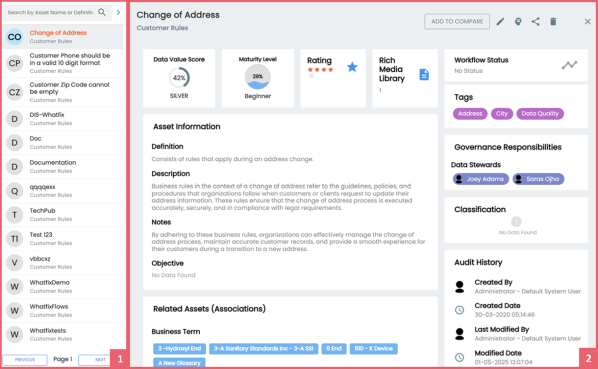
For example, the following image displays the asset's data value score, tags, associations, governance responsibilities, audit history, and more. You can hover over Data Value Score to view the percentage of the data value score. Additionally, the associated assets are now clickable. Clicking on any of these assets takes you to the specific asset's page.
|
UI Section |
Function |
|---|---|
|
1-Business Rule List |
Use this pane to browse through the list of business rules. |
|
2-Asset Details |
Use this section to view business rule details. Apart from viewing business rule, you can view or edit the following business rule properties:
|
Editing Business Rules
To edit a business rule, follow these steps:
- On the business rule summary page, click
 .
. - On the Edit Business Rule tab, use the following options:
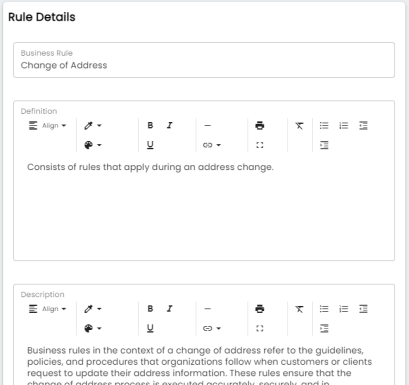
- Rule Details
- Use this section to edit business rule's details, such as its definition and description. For description of fields on this section, refer to the Creating Business Rules topic.
- Governance Responsibilities
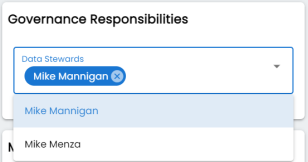
- Use this section to edit governance responsibilities assignment. It displays roles groups based on the roles and users assigned to a business rule catalog. To edit governance responsibilities, click a role group and add or remove users. For example, in the following image Mike Mannigan is added to the Data Stewards role group.
For more information on assigning roles and users to a catalog refer to the Updating Data Governance Assignments topic.
- Miscellaneous
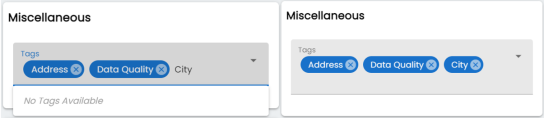
- Use this section to associate enterprise tags with business rules. Click Tags and select an existing tag or enter a tag name to create one on the fly.
- For example, in the following image, a tag, "City", is created and assigned to a business rule.
To compare business rules while viewing them, follow these steps:
- On the Assets Details page, click Add to Compare.
The Assets to Compare sheet appears.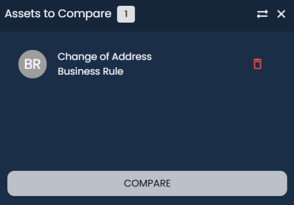
- On the Business Rule List, select other assets that you want to compare and click Add to Compare.
The selected asset is added to the Assets to Compare window.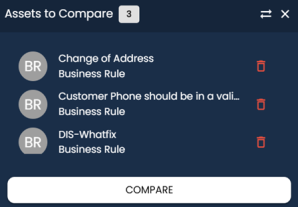
You can click to remove assets from the list and
  to move the window.
Repeat this step to add more assets for comparison.You can select up to five assets for comparison.
- Click Compare.
The Compare Assets page appears and displays the side by side comparison of asset properties for the selected assets.
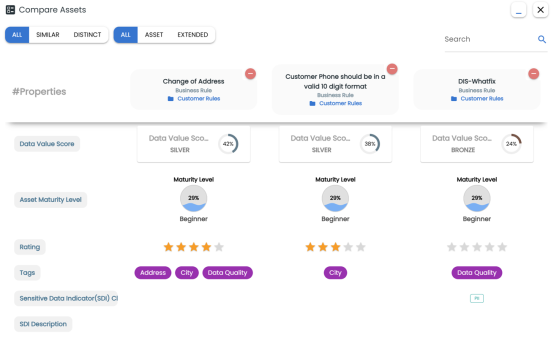
For more information about comparing assets based on properties, refer to the Comparing Business Assets topic.